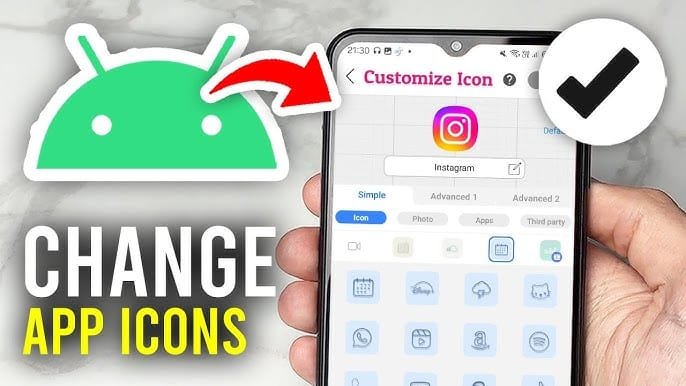
Change Any App Icon: A Complete Guide to Personalizing Your Phone
Have you ever wanted your phone to look completely different without buying a new device? One of the easiest ways to refresh your smartphone is to change any app icon. Whether you want a minimalist home screen, colorful icons, or custom images, changing app icons gives your device a unique and personal touch.
The good news is that you don’t need advanced technical skills to customize your apps. In this guide, you’ll learn how to change app icons on Android and iPhone, the best methods to use, and useful tips to make your home screen look amazing.
Why Change App Icons?
Changing app icons isn’t just about appearance. It offers several practical benefits:
- Create a personalized home screen.
- Match icons with your favorite theme or wallpaper.
- Organize apps more effectively.
- Make frequently used apps easier to identify.
- Give your phone a fresh new look without installing a custom ROM.
Many users also enjoy creating aesthetic setups for social media or simply expressing their personal style.
How to Change Any App Icon on Android
Android offers multiple ways to customize app icons depending on your device.
Method 1: Use a Custom Launcher
Custom launchers are one of the easiest ways to change app icons.
Popular launchers include:
- Nova Launcher
- Microsoft Launcher
- Smart Launcher
- Niagara Launcher
After installing a launcher:
- Set it as your default launcher.
- Long-press an app icon.
- Select Edit or Change Icon.
- Choose a new icon from an icon pack or your gallery.
- Save the changes.
This method works on most Android devices and gives you complete control over your home screen.
Method 2: Use Icon Packs
Thousands of icon packs are available on app stores.
Popular styles include:
- Minimal icons
- Material Design icons
- Dark theme icons
- Neon icons
- Cartoon icons
Most launchers support icon packs with just a few taps.
Method 3: Use an Icon Changer App
If you don’t want to install a launcher, many icon changer apps allow you to create shortcut icons with custom images.
Features often include:
- Custom photos
- Emoji icons
- Theme collections
- Color customization
- Personalized labels
Keep in mind that some apps create shortcuts rather than replacing the original icon.
How to Change App Icons on iPhone
Apple also allows users to customize app icons using the Shortcuts app.
Follow these steps:
- Open the Shortcuts app.
- Tap the “+” button.
- Select Open App.
- Choose the app you want.
- Tap the share icon.
- Select Add to Home Screen.
- Tap the current icon.
- Choose a photo from your gallery.
- Rename the shortcut if desired.
- Tap Add.
Your customized icon will now appear on the Home Screen.
Although the original app remains installed, many users hide it inside the App Library.
Best Ideas for Custom App Icons
If you’re looking for inspiration, consider these popular themes:
Minimalist Theme
Simple black and white icons create a clean, modern appearance.
Dark Mode Icons
Perfect for OLED displays while maintaining an elegant look.
Anime Theme
Fans often replace icons with characters from their favorite anime series.
Gaming Theme
Customize icons using game logos, controllers, or futuristic designs.
Nature Theme
Use mountains, flowers, forests, or oceans for a calm and refreshing home screen.
Tips for Creating a Beautiful Home Screen
Changing icons is only one part of phone customization.
For the best results:
- Match icons with your wallpaper.
- Use consistent icon shapes.
- Keep similar colors together.
- Organize apps into folders.
- Remove unused applications.
- Choose widgets that complement your theme.
A well-designed home screen not only looks better but can also improve productivity.
Are Icon Changer Apps Safe?
Most popular icon changer apps are safe if downloaded from trusted sources.
Before installing any app:
- Read user reviews.
- Check developer ratings.
- Avoid unnecessary permissions.
- Download only from official app stores.
- Keep your apps updated.
Avoid downloading modified APK files from unknown websites, as they may contain security risks.
Common Problems and Solutions
Icons Revert After Restart
Some devices automatically restore default icons after updates. Reapply your launcher settings if necessary.
Shortcuts Instead of Real Icons
Many icon changer apps create shortcuts rather than modifying the original app. This is normal and does not affect app functionality.
Launcher Compatibility
Not every launcher supports every icon pack. Check compatibility before downloading premium icon sets.
Benefits of Customizing App Icons
Custom icons offer more than visual appeal.
Benefits include:
- Improved personalization
- Better app organization
- Modern appearance
- Enhanced user experience
- Endless creative possibilities
Whether you prefer elegant minimalism or colorful themes, custom app icons allow you to create a phone that truly reflects your personality.
Conclusion
Learning how to change any app icon is one of the easiest ways to personalize your smartphone. Android users can take advantage of launchers, icon packs, and dedicated icon changer apps, while iPhone users can customize icons through the Shortcuts app.
With the right combination of icons, wallpapers, and widgets, you can transform your home screen into something unique and visually appealing. Choose trusted customization tools, experiment with different themes, and enjoy a phone that feels completely your own.